Add a Pipeline Status
You can add Pipeline statuses by executing the following steps:
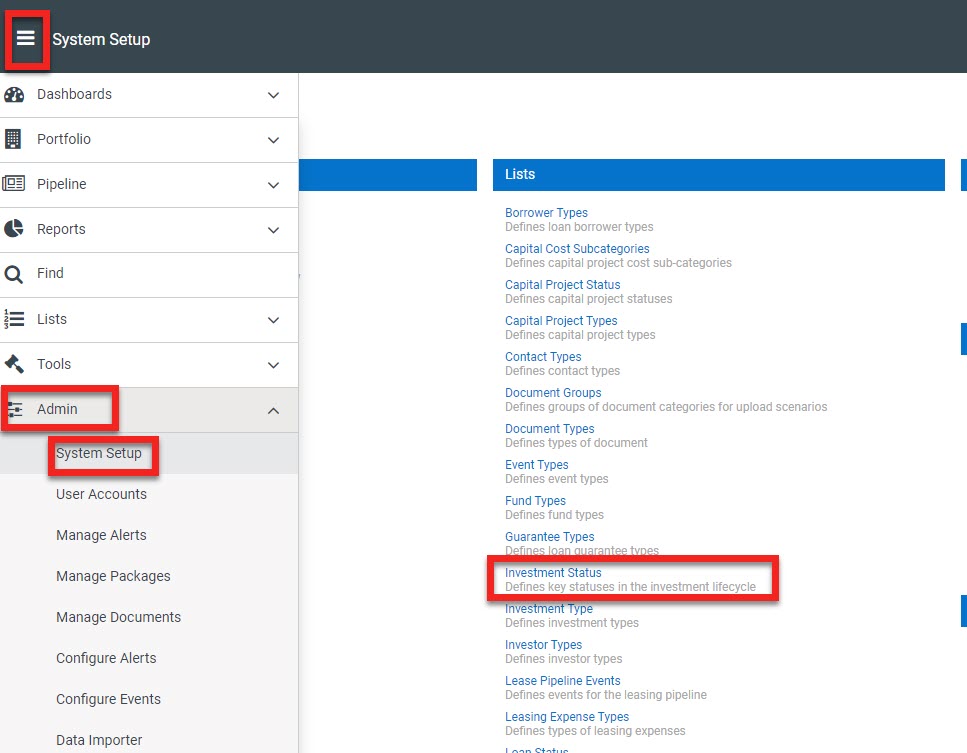
Navigate to Admin > System Setup > Investment Status
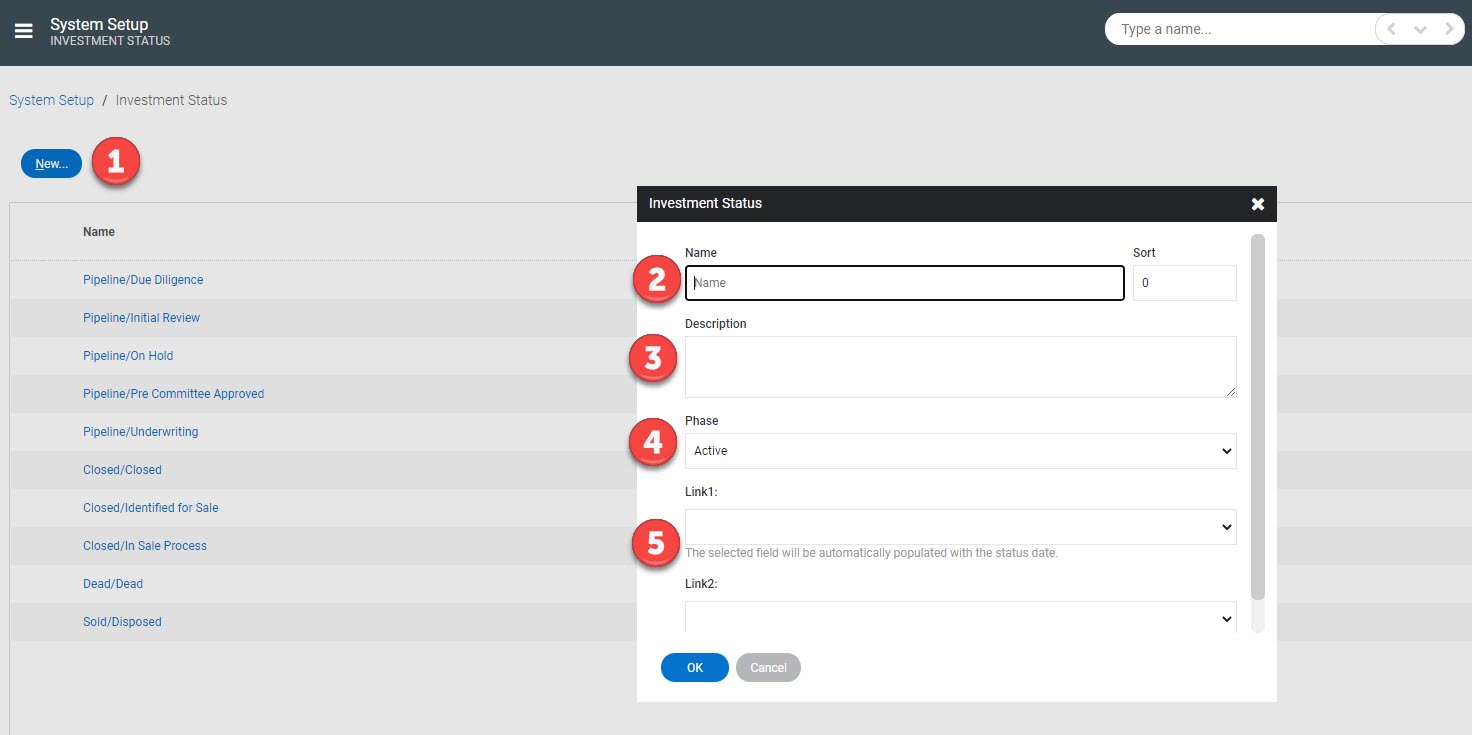
1. Click 'New' (blue button at top left corner)
2. Enter the name of the status to be added
3. Enter an applicable status description if desired
4. Phase should remain ‘Active’ if the status should appear under the "Pipeline" header. If you are adding a "Dead" status you should set the phase to correspond to "Dead".
5. Link 1 and Link 2 should typically remain blank. You can use these to link the pipeline status to other data points automatically via the drop-down options.
Should you need to edit a status after creation you can do so by simply clicking on the hyperlinked name to make those edits.
You can delete a status by clicking on the three dot menu to the left of the status name and selecting "Delete."
Now, when you enter a pipeline deal you will see the options that you have added.
*Note that should a deal close, it would need to be added as a closed property, it does not transfer over from Pipeline.*