Setting Up Reporting Packages
Reporting packages allow you to collect financial and operational information from operating partners. A reporting package consists of tabs created to collect different types of data – each step is assigned to a role(s) that has the responsibility for completing a task within the package.
Creating or Editing Package Templates
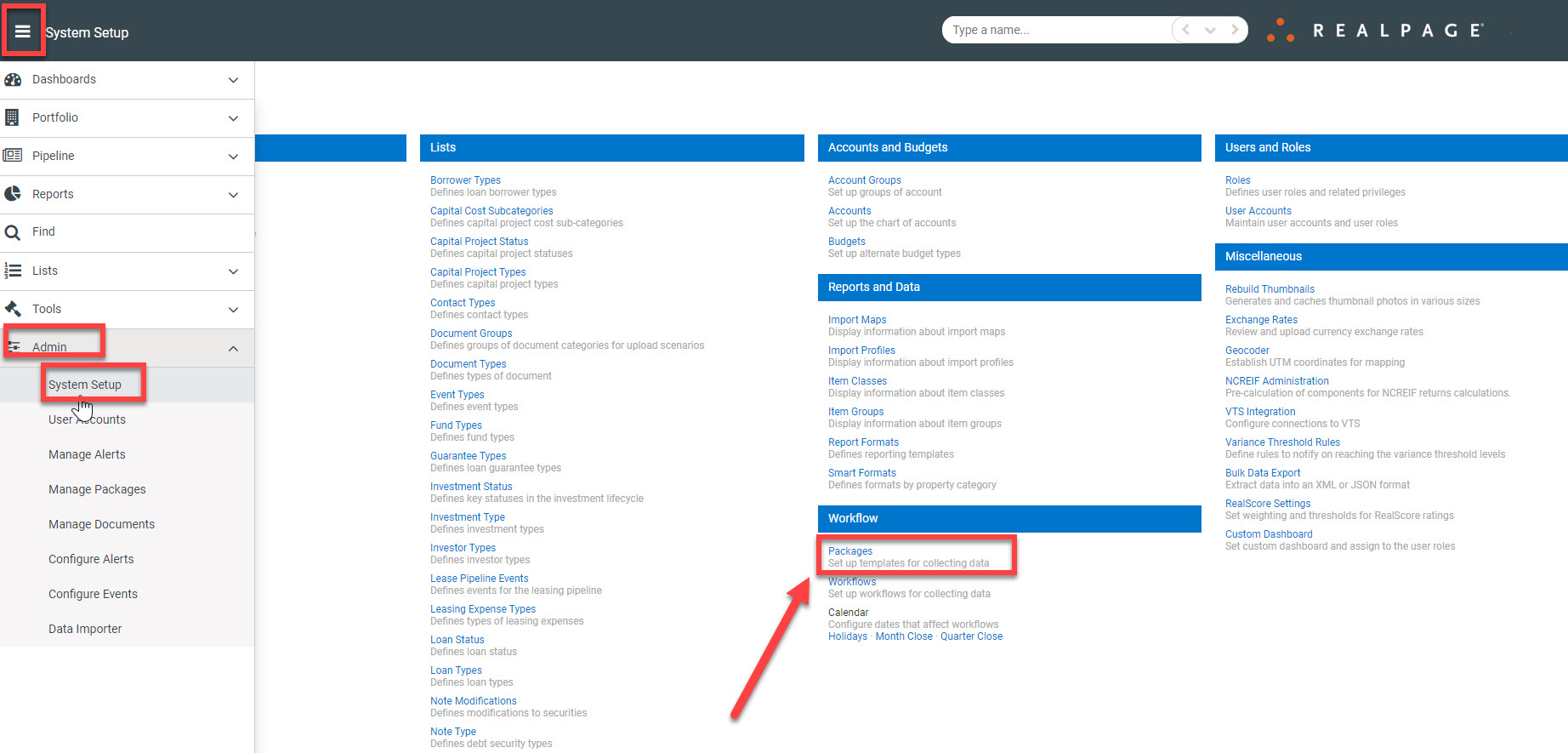
Open the packages templates by selecting the Admin>System Setup menu option and clicking the Packages link.
Open an existing package template to edit or click the “New” button to create a template from scratch. *Note* If creating a new template, you’ll be prompted to name and associate a workflow to the template before moving forward to the setup screen
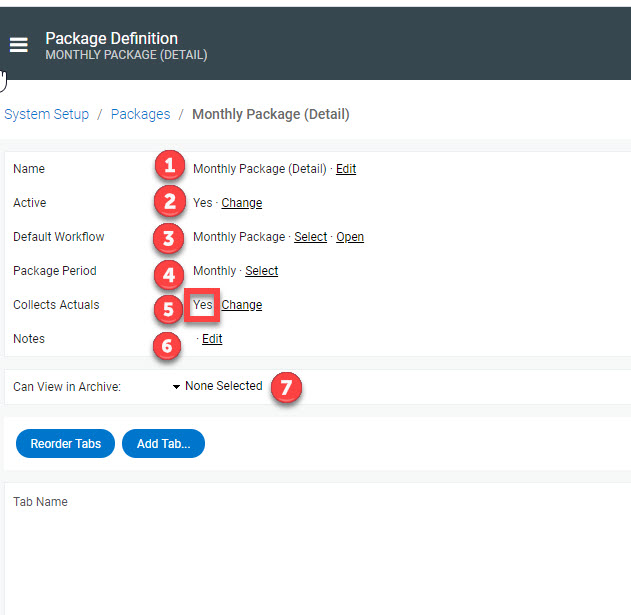
Once you select the template to work from, you’ll be able to edit the following attributes for the package:
- Name – The name for the package
- Active – A yes/no value indicating if the package template is active or not
- Default Workflow – Workflows are typically assigned to package templates when they are bound to properties – see article on Workflows for more information.
- Package Period – Indicates the frequency of the package. The valid values are Monthly, Quarterly and Annually.
- Collects Actuals – A yes/no value to indicate if the package will be used to collect actual financial values. If this value is not set correctly, certain features like the report viewer tab and package posting will not function properly. Ensure the value is set to “yes” if the package will collect trial balance data.
- Notes – Add notes or a description to the package template
- Can View In Archive – Select the different roles that should be able to view archived (historical) packages from the property page.
Adding or Editing Template Tabs
The tabs on a package template are used to collect and report different sets of data.
To add a tab:
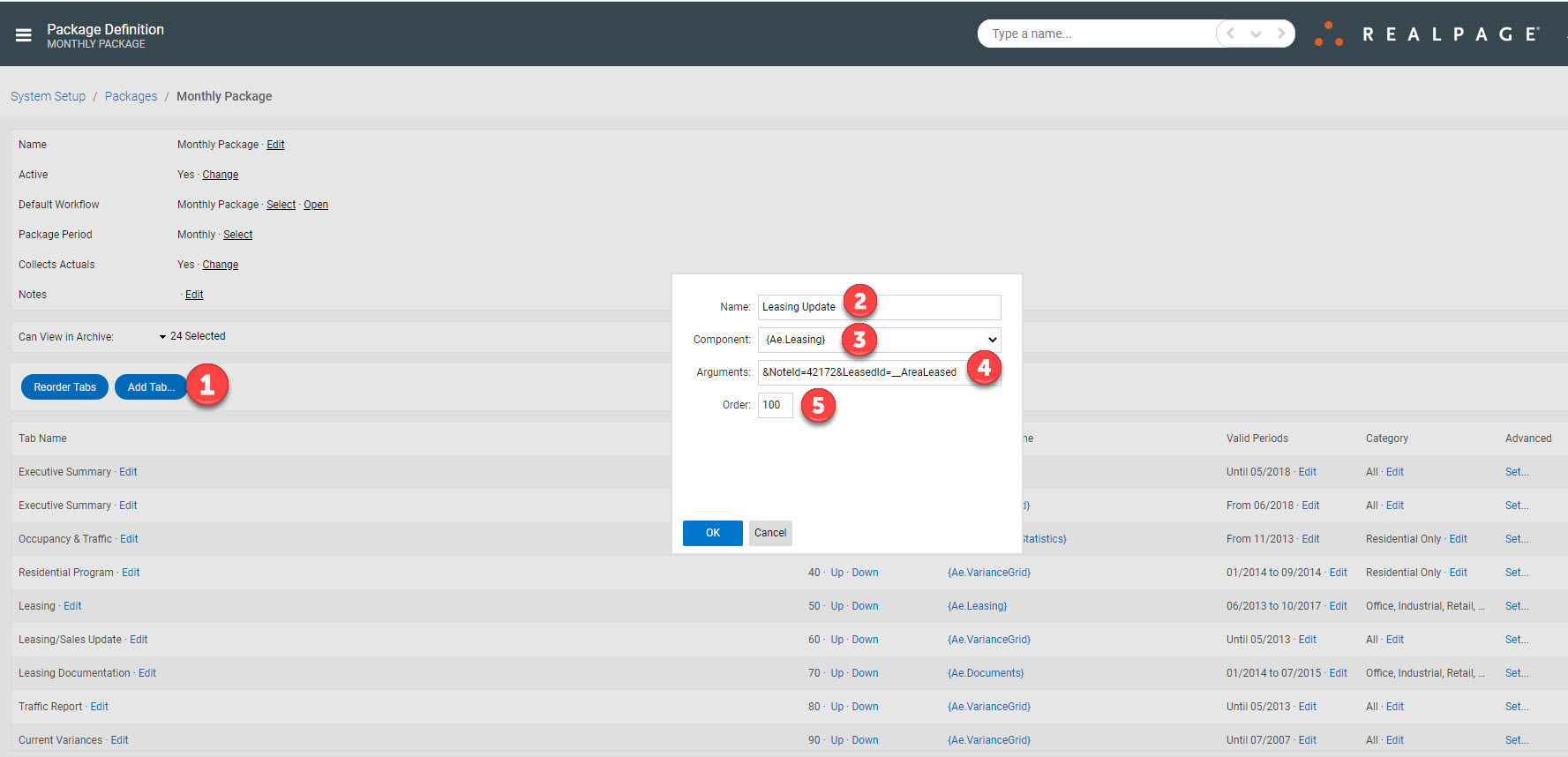
- Click the “Add Tab…” button on the bottom of the page to display the new tab dialog
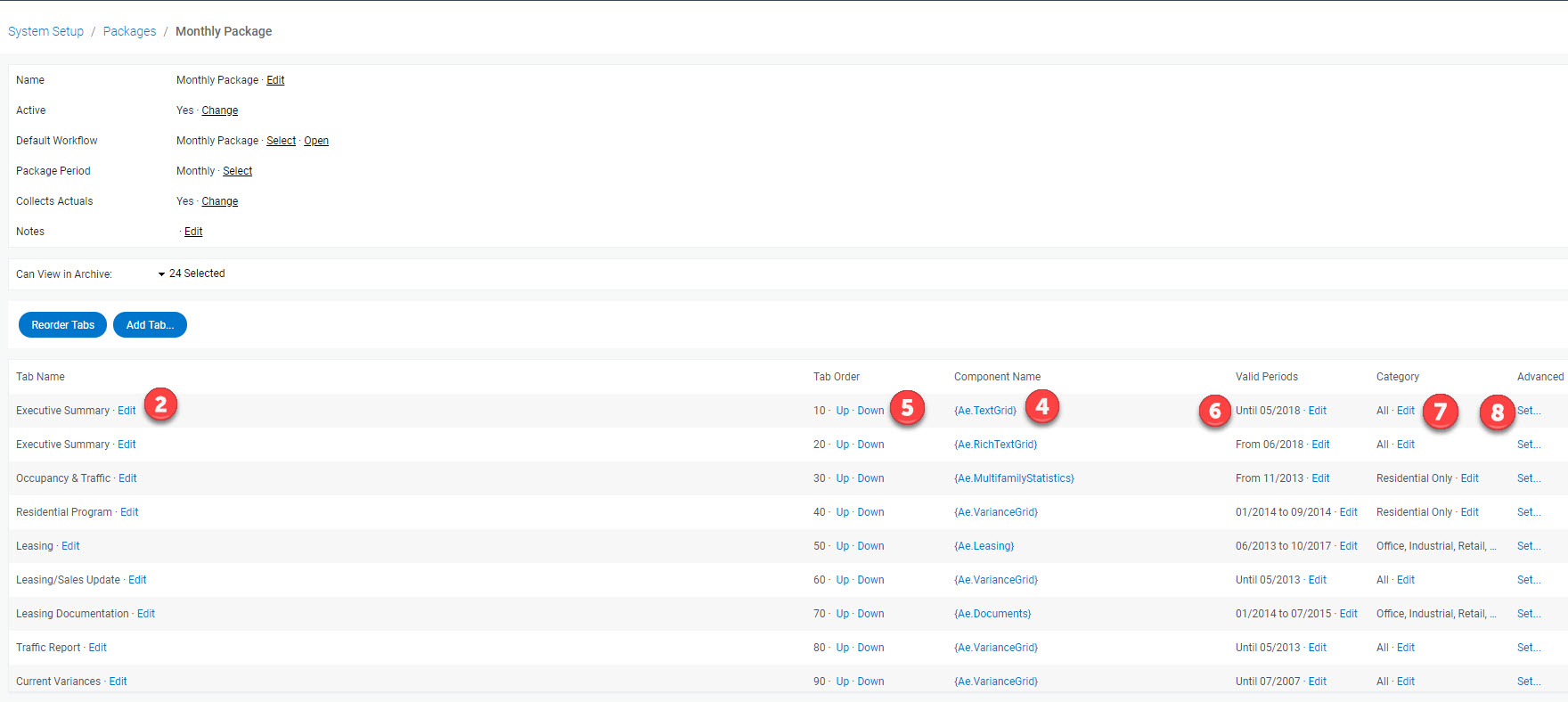
- Type the name of the new tab in the name field of the dialog or edit it by clicking the “Edit” link in the tab list of the Package Template definition
- Select the type for the new tab by selecting one of the options from the Component dropdown list.
- Configure the arguments necessary to enable the component. The arguments can be modified by selecting the component name in the list of package tabs. If you are not sure how to modify the arguments, please reach out to support for assistance.
- Type a number representing the position the tab occupies or click the “Up/Down” links in the tab list to change its position.
- Select the “Edit” link in the Valid Periods column to display a dialog where you can customize the date range when the tab is valid. This is used typically to turn off a tab where the you either want to replace/update/discontinue use of the tab. By entering a ‘to’ date, the historical data is retained, but the tab no longer appears in future reporting packages.
- Select the Property Categories where the tab applies. The tab will only be shown for properties classified as one of the selected categories. Note: One tab can appear multiple times, i.e. Occupancy, where different types of data are collected in a tab. Hospitality varies from Commercial and Residential – all three are typically visible in the package setup but only one will appear at the asset’s reporting package.
- Advanced – selecting the “Set…” link associated with a tab displays a dialog where an advanced condition for display is defined. This can be used to customize a tab for a specific property, etc.