Reset a User Password
If one of your team members forgets their password, they should first attempt to reset their password by clicking 'Forgot Password?' on the log in screen, which will prompt them to enter their email. They will then receive reset instructions to the email account on record.
If this does not work, or the user becomes locked out another admin on the account has the ability to reset their password.
- First, navigate to the left side navigation menu then select “Admin”>”User Accounts”
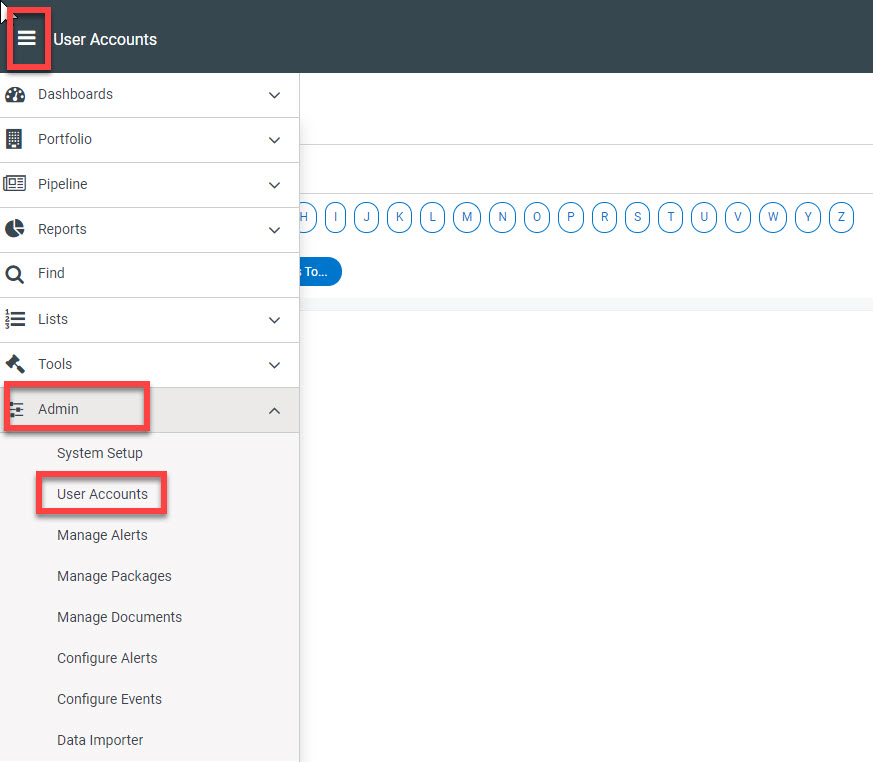
2. Search for the user you need to reset by name, then click on the hyperlinked username.
3. Check to make sure the account isn’t locked. If it is, you should select “Unlock” before proceeding.
4. You now have the option to either “Generate Password” or “Choose Password”
a. “Generate Password” is the more secure option. This will generate a random password, which will appear to you in a pop-up. This pop-up will ask if you would like to email this password to the user.
*Please Note - Pasting a generated password will add a space to the end. Backspace to remove this extra space before entering the password (only if using copy/paste).
b. “Choose Password” allows you to set a custom password for the user. There is not an option to automatically notify the user in this case.
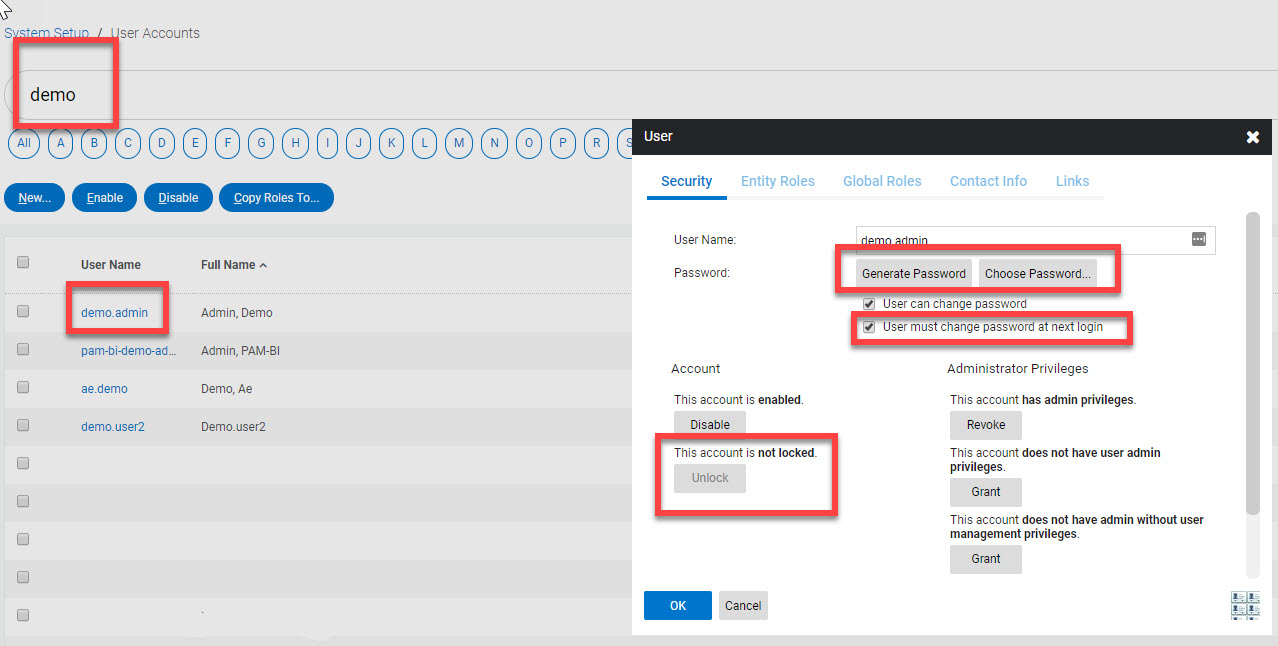
5. Before clicking “OK” you should consider whether to require the user to change their password at next login. For security reasons it is strongly advised that you do so. To require this, simply check the box “user must change password at next login” before clicking “OK.”